

Filtering bookings
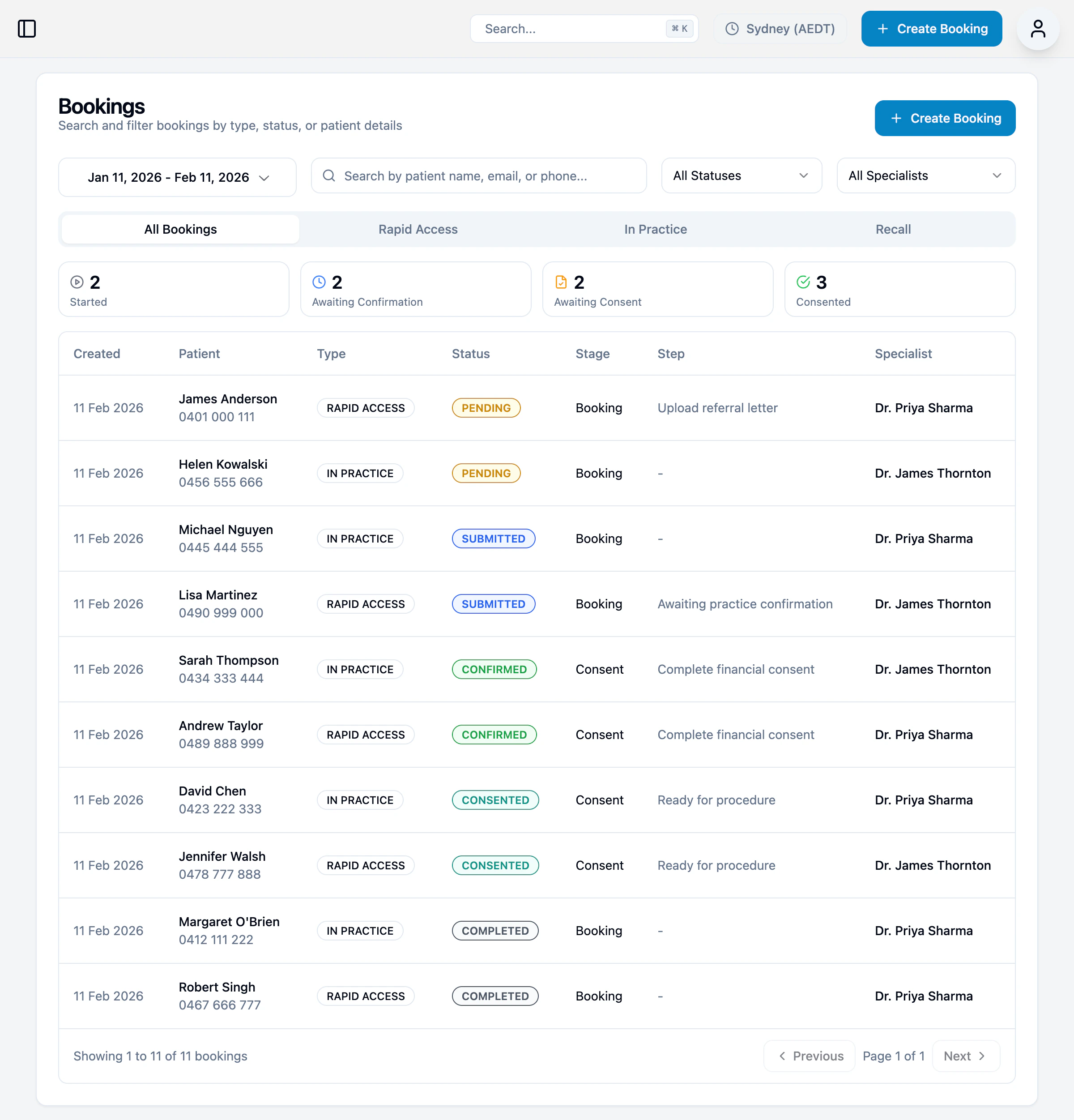
Use the tabs to filter by booking type:| Tab | Description |
|---|---|
| All Bookings | All bookings across all types |
| Rapid Access | Patient-initiated bookings where they select their own time |
| In Practice | Admin-created bookings where you control the appointment |
| Recall | Follow-up bookings from recall reminders |
- Date range — Filter by booking creation date
- Search — Find by patient name, email, or phone
- Status — Filter by booking status
- Specialist — Filter by assigned specialist
Booking statuses
| Status | Description |
|---|---|
| Pending | Waiting for patient to add their details and submit |
| Submitted | Patient submitted, ready for review |
| Awaiting Confirmation | Waiting for consultation and procedure to be confirmed |
| Confirmed | Booking confirmed by admin |
| Consented | Patient completed all consent steps |
| Completed | Procedure performed |
Viewing a booking
Click any booking to view its details.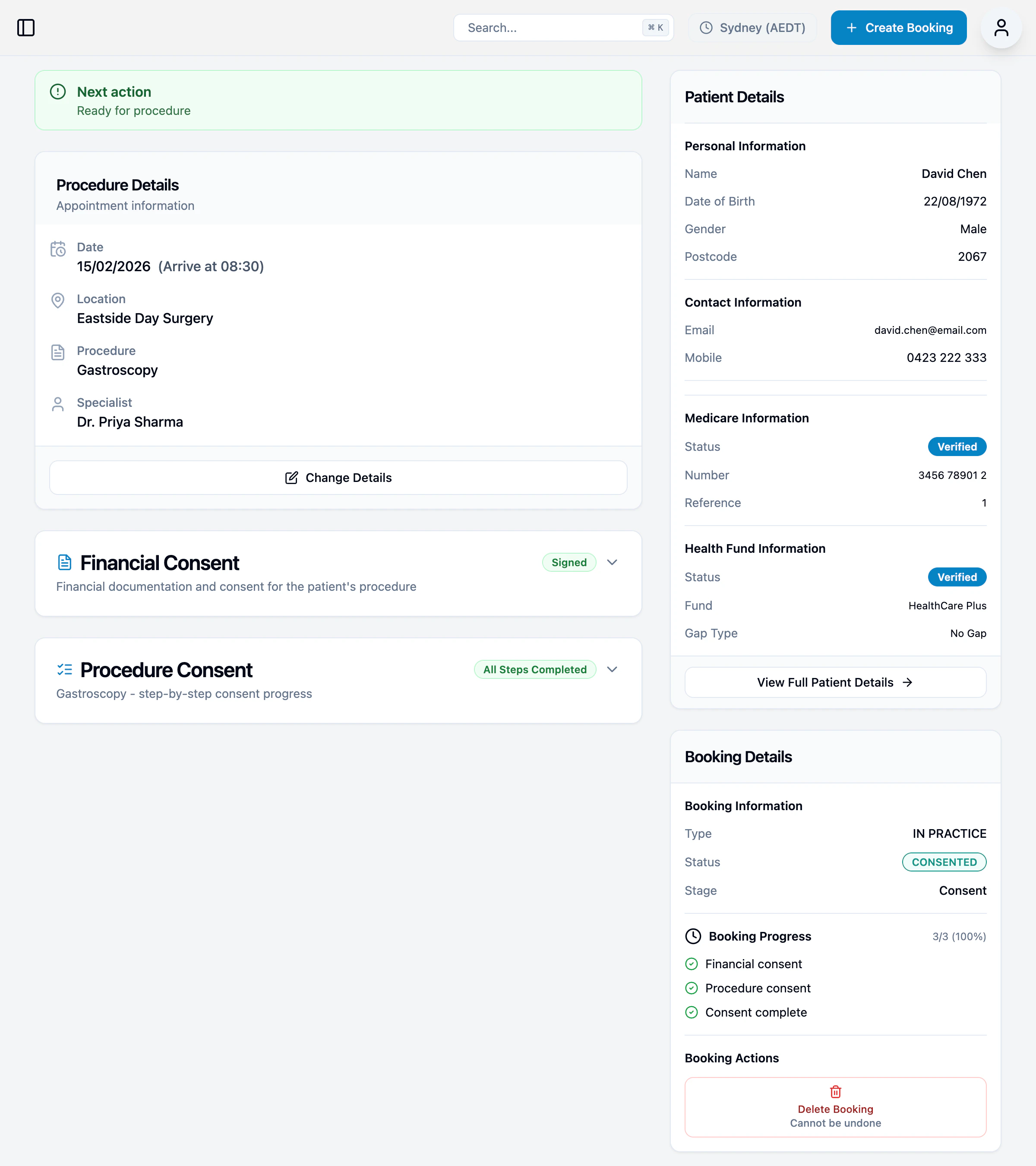
Procedure Details
- Date and arrival time
- Location
- Procedure type
- Assigned specialist
- Consultation times (if any)
Consent Progress
- Financial Consent — Shows signed/pending status
- Procedure Consent — Shows completion status for each step
Patient Details
- Personal information (name, DOB, gender, postcode)
- Contact information (email, mobile)
- Medicare information (number, reference, verification status)
- Health fund information (fund, gap type, verification status)
Booking Actions
- Change Details — Update appointment details
- View Full Patient Details — Go to patient record
- Delete Booking — Remove the booking (cannot be undone)
Creating a booking
- Click + Create Booking in the top navigation
- Enter patient details (or search for existing patient)
- Enter procedure details
- Click Create Booking